Here’s the full tour. Spoiler: it’s a lot of app. Sensei has been busy.
Made for foldables
One app that unfolds with you: iPhone Duo, Galaxy Z Fold, every foldable and every tablet.
Folded, StuffSensei is the app you know. Open it up and it becomes a book: your home on the left, and whatever you tap opens on the right, split right at the fold.
iPhone Duo, openYour rooms on the left, the drill on the right
iPhone Duo, closedTabs down the side, Apple’s way
Galaxy Z Fold 8, openHome on the left, everything at a glance on the right
Galaxy Z Fold 8, cover screenThe dock at the bottom, Android’s way
Split rail on every foldable and tablet, automatically: rooms down the side, details beside them
Both halves at work: until you open something, the right side shows your home at a glance
On iPhone Duo, the tabs and buttons move to the side, the way Apple designed it
On Galaxy Z Fold, navigation stays at the bottom, the way Android does it
Unfold mid-task and carry on: the app reshapes itself without starting over
The geeky bit
For developers, and anyone who reads the manual before building the bookshelf.
Apple and Google each publish rules for how apps should behave on folding and big screens. Here’s what they ask, and how StuffSensei answers. Everyone else: your stuff looks great either way. Carry on.
Apple · iPhone Duo
What Apple asks
Lay out by screen size, not by how the phone is held
Keep the same controls folded, open or half open
Put tabs and toolbars along the side edge, within reach
Keep clear of the hinge, the cameras and the system areas
How StuffSensei does it
The layout follows the screen’s shape, so the outer display gets the phone view and the inner display gets Split rail. The same tabs and buttons are there in every position, and on iPhone Duo they sit down the side, inside the system’s own column.
A list and its details side by side on big screens
Navigation that suits the device, like Android’s own apps
No starting over when the device folds or unfolds
How StuffSensei does it
Open a Galaxy Z Fold or a tablet and your rooms sit on the left with whatever you tap on the right, split at the fold. Navigation stays at the bottom, Android’s way, and unfolding mid-task carries on where you were.
Spaces are rooms and areas: kitchen, garage, attic, storage unit, the car, the trailer. Bins are what you keep things in: totes, boxes, toolboxes, drawers, shelves, the trunk. Bins go inside bins, as deep as your organizational ambitions.
Photos for every space, with a starred cover
Paperwork for the room itself: the roof receipt, the garage door manual
Snapped a receipt with the room? Move that photo to its paperwork, a new item or another bin
Bins inside bins inside bins
Several properties: home, the rental, the lake cabin
Hold a space to turn it into a bin somewhere else (we all add the HVAC unit as a room once)
Real life: The Christmas lights live in Garage › Shelf › Red tote. In June, you’ll be grateful.
Items
Every thing, with its whole story.
Name it by typing, talking or scanning its barcode, and StuffSensei looks up the name, brand and photo. Add as much or as little as you like.
Photos, brand, model, serial number, condition
What you paid and what it’s worth now, right with its name
The warranty, and when and where you bought it
Receipts, manuals and warranty cards attached
Lent it out? Who has it, and when it’s due back
Sort by name, value, room or what you added last
Real life: The drill’s serial and receipt are in the app. The drill is at your brother-in-law’s. The app knows that too.
QR & barcode studio
Labels, made and printed in the app.
No side app, no website that wants your email. StuffSensei generates the QR codes and barcodes and prints them itself.
QR codes or barcodes for spaces, bins and items
Any size from ½-inch squares to 4 × 2 inch labels, with borders
Plain paper, sticker sheets, or a popular Bluetooth thermal label printer
Make codes for links, Wi-Fi and phone numbers too
Already have stickers? Link a code you already have
Real life: Label every box before the move in one go: one sheet, eight labels, done before your coffee gets cold.
Scan & NFC
See inside the box without opening it.
Scan a box’s QR label (or tap its NFC tag) and the list of what’s inside pops up. Scan into a bin to add a pile of things in one go, beep, beep, beep.
A red laser line and a register beep, like the store
Batch scan a whole pile into one bin
No spot for it yet? Scan it into the Waiting room, filled in from its barcode
NFC tags on spaces, bins or items: tap to open
Scan a box mid-batch to switch boxes
Real life: The garage has 31 identical gray totes. Only one has the tent. Scan, scan, tent.
Stuff To-Do
Checklists for the big stuff.
Moving day, a move-in or move-out walkthrough, a unit turnover, a crew moving job, a property inspection, or your own blank list. Every task gets a real date counted back from your day, and changing the day moves them all.
Ready-made templates: 20 to 30 tasks each, already written
Assign tasks to family, maintenance, the crew or the moving company
Their tasks are theirs: only they (or whoever made the plan) can tick them
Hold tasks to tick, move, reassign or delete several at once
Filter by person and send everyone their own list
Phone reminders the morning each phase starts
Real life: “Scan every bin as it’s loaded” counts all 23 boxes onto the truck. If the ring says 22 of 23, somebody go check the attic.
Stuff To-Do, not just to-do
Not your ordinary to-do list.
Most to-do apps know nothing about your stuff. Stuff To-Do lists are wired into your home: a task knows which room, which bin and which thing it means, and tapping it takes you straight there. Share a list with the family or the crew, or keep it just for you.
Private and sharedYour own lists stay yours
Every tick on the recordWho did what, and when
Tasks that open the room
“Pack the attic first” shows Attic · 6 bins, 41 things. Tap it and you’re in the attic, bins and all, ready to pack.
Scan to tick it off
“Scan every box onto the truck” counts each QR label as it’s loaded. 22 of 23? Somebody check the garage before the truck leaves.
Shopping that checks your shelves
Put “flashlight” on To get and it says you have one, in the garage, before you buy a fourth. Bought something new? Put it away into a bin in one tap.
Shared with the people doing it
Hand tasks to family, the crew or the moving company. Each person gets their own list, and their tasks are theirs to tick off on their own phone.
Private when it’s yours
Your own lists stay with your account, even in a shared home. The family sees the move; nobody sees your gift list.
Every tick on the record
Name, date and time on every ticked task, and a full history: who made the list, who added what, who handed what on, who checked off what.
Real life: Tom makes the moving plan. The movers add “Book the freight elevator.” Mia ticks “Photo the TV wiring” at 10:03 am. Every box is scanned onto the truck and into its new room, and the history shows the lot, down to the minute.
Quick declutter
Snap it. Sort it. Out the door.
Clearing out a room? Snap the whole pile in seconds, then sort it one photo at a time: put it away, hand it to someone, or send it to the Garbage or Donate list with one tap. It waits there until it actually leaves the house, and StuffSensei reminds you the night before trash day.
1 · Snap the pileSort it later
2 · Sort it outGarbage, Donate or put away
3 · Out the doorTick things off as they go
4 · Trash dayA reminder the night before
One tap to the curb
Garbage and Donate sit right under the photo while you sort. Tap one and the next thing comes up. Nothing is deleted until it’s really gone.
Hand it off
Not your job? Assign it: pick where it goes and who should take it there, and it lands on their to-do list.
Batch it
Select several to move them between Garbage and Donate, send them back to the drawer, or delete them. Tick them off with It’s out or Dropped off.
Trash night, remembered
Tap the days your garbage is collected (twice a week is fine) and around what time. You get a nudge the night before, only when something’s waiting.
Donations that add up
Give each donation a value and the list totals it for your receipt. Tick them off as you drop them off.
The Waiting room (really a wish list)
It’s not hoarding if it’s inventoried. New stuff with no spot yet, and stuff you want to buy, waits here. Scan things in one after another, filled in from their barcodes; tap Find a spot when one has a home, or Bought it when a want comes home.
Real life: Saturday, garage clear-out. Twenty photos in ten minutes. Sunday, ten minutes on the couch sorting: Mia’s old bike and a box of paperbacks to Donate, a broken umbrella and three old paint cans to Garbage. Thursday at 8 pm: “Trash night: 2 things go out.”
Walkthroughs & crews
Walk it once. Prove it forever.
A move-in or move-out walkthrough goes room by room: keys, walls, windows, every appliance with its serial. Photos land in a room-by-room report you both sign. Turnovers, inspections and crew moving jobs work the same way.
Condition photos and serials for every appliance, per unit
Export the signed room-by-room report with photos
Unit turnover: walk it, fix it, clean it, rent it, dated back from move-in
Crew jobs: QR-label every box, scan it onto the truck and off again
Inspections that repeat every season, with upkeep reminders
Real life: The tenant says the dent was there when they moved in. The move-in report, with a photo and a date, says it wasn’t.
Maintenance & repairs
Every fix, with who did it.
Add a maintenance update in seconds: what was done, where, who did it and what it cost, with photos of the work and the receipt. Upkeep you tick off lands in the same history, for the whole property, one room or the car.
Repairs, replacements, upgrades, services and inspections
Who did it: you, family, or a saved service contact with their number
Full history by property, room or vehicle, with the total spent each year
Photos of the work, the receipt and the invoice on every update
Real life: The water heater was replaced last month by the plumber, for $1,480, with a 6-year warranty. The app remembers. So will the next owner.
Vehicles
The car, with a memory.
Plate, VIN and only the details you add: tire size, oil type, wiper blades, paint code. Log the mileage at every fill-up or service, and every reading stays, with the miles in between.
Your own details; only the filled-in ones show
What you paid and what it’s worth, counted in Insights
Mileage history, with about how far you drive a month
Repairs and services logged with the odometer reading
Oil, rotation, registration and insurance reminders
Real life: At the tire shop: “What size?” Tap the car. 225/65R17. Back to the waiting room coffee.
Pets
Everything about her, in one place.
Dogs, cats, birds, fish, rabbits, reptiles, horses. Each pet gets a page: her profile, her paperwork, her care reminders, every vet visit and what it cost, and her own supplies. No more digging through email for the rabies certificate at the boarding desk.
Her profileTap the microchip to copy it
Paperwork, care and vet visitsWith her weight at every visit
Her profile
Kind, breed, sex, birthday (her age works itself out), color and markings, microchip, license or tag, insurance and her vet. Only what you fill in shows; tap any line to copy it.
Her paperwork
Vaccination certificates, vet invoices, adoption papers and insurance, filed on her page. Snapped the rabies certificate with the kitchen counter? Open the photo, tap Move, and file it under her.
Care reminders
A new dog or cat starts with rabies, DHPP or FVRCP, flea and tick, heartworm, grooming, a checkup and the license renewal, each with a phone reminder before it’s due.
Vet visits & care
What for, when, which vet, the cost, her weight that day, notes and photos. Every weigh-in is kept, and what she costs shows up as Pet care in Insights.
Her supplies
Food, meds, leashes and toys are items on her page, like anything else in the house, with use-by reminders for meds.
Pet sitter sheet
One tap makes a page with her photo, feeding, meds and allergies, notes, the vet’s number, her microchip and care due soon, ready to send to the sitter.
Real life: The boarding place wants proof of rabies, the microchip number and an emergency vet. Open Luna, send the pet sitter sheet and the rabies certificate. Done before the coffee’s ready.
Insights
See where the money went.
Every purchase, every upkeep job and every repair, added up for you. Pick a month, a year, all time or any dates on the calendar, and see it by category, by room, by property or by who you paid. Then sort every expense, biggest first.
Purchases, upkeep and repairs side by side
This year against last year, in one line
Month by month, so the expensive months stand out
By room, property or contractor: tap one to see just those
Real life: It turns out the garage cost more than the kitchen this year. The garage would like to discuss the new water heater.
Family & team sharing
Share the home. Share the chores.
Add someone with their name, role and email. They get an invite, show as Pending, and join with one tap. Everyone sees the same home on their own phone.
Can edit for family and crews; Can view for clients and insurers
Assigned locations and tasks for each household member
Changes show up on everyone’s phone in seconds
View-only links anyone can open in a browser, no app needed, with room photos and a note, that expire when you say: for tenants, insurers, buyers and showings
A photo showcase of chosen things for buyers and clients, with asking prices
Private lists stay yours: nobody else in the home sees them
A face and a company name with everyone: Mike (Two Guys Movers) on every task he ticks
Perfect for parents, roommates, crews and property managers
Or invite with an 8-letter code, old school
Up to 4 can edit, you included; viewers are free and unlimited
Sharing your home comes with Pro; everyone you invite joins free
Real life: Grandma can view, so she can see you really did keep her china. She cannot reorganize it. Peace is kept.
Reminders
The nagging, outsourced.
Phone reminders worked out from what you’ve added, scheduled on your phone, arriving even when the app is closed.
Warranties ending, while you can still claim
Use-by dates: medicine, filters, extinguishers
Upkeep for the house and car: filters, gutters, oil
Things lent out, on the day they should come back
Medicine and daily reminders
Real life: The furnace filter has been changed on time. For the first time. In recorded history.
Reports & backups
For insurance, renting or moving.
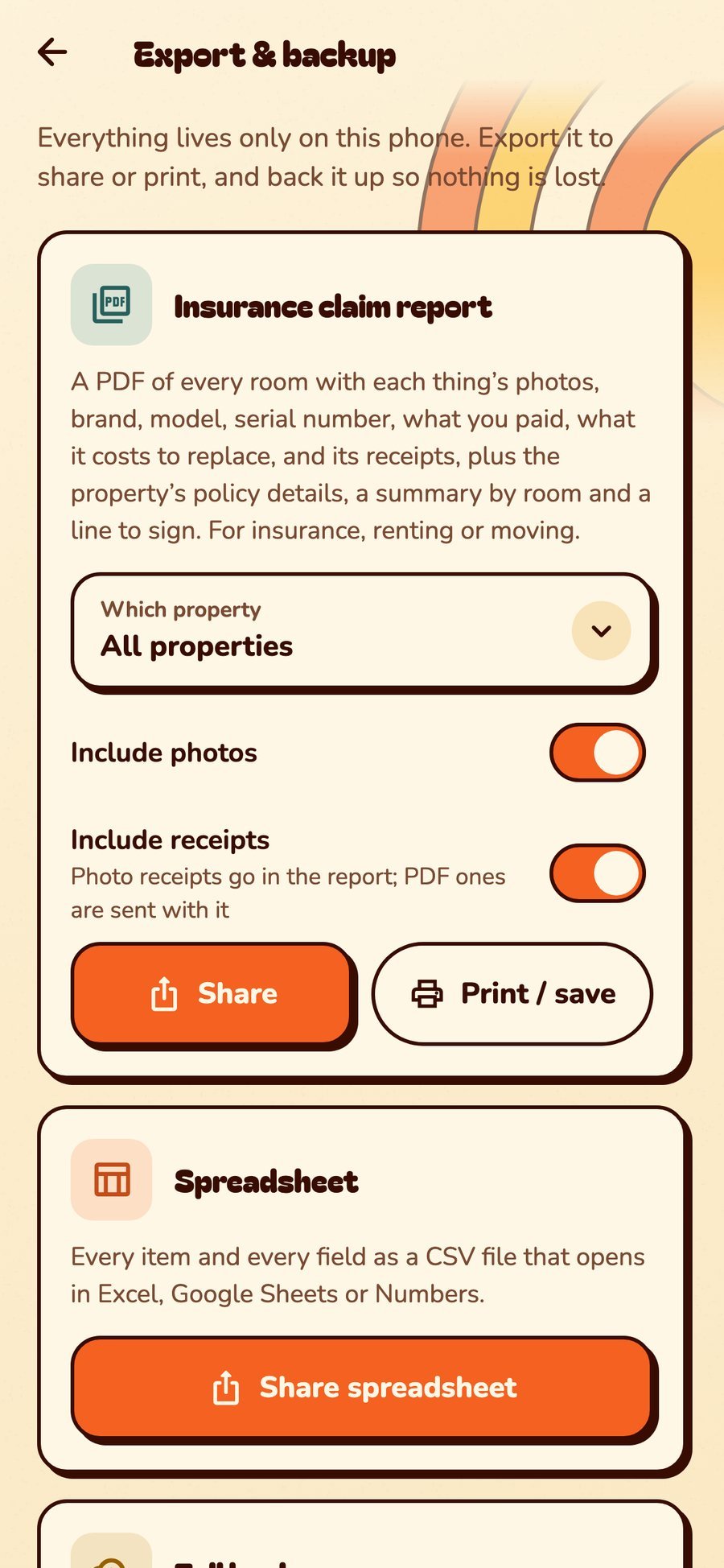
One tap makes a PDF of every room with each thing’s photos, brand, model, serial number, what you paid and what it costs to replace, plus the receipts and a line to sign.
Insurance claim report (PDF), by property
A spreadsheet of everything (opens in Excel, Google Sheets or Numbers)
Real life: Your adjuster asked for “a list of contents.” You sent 14 pages with photos. They went quiet. Respectfully quiet.
Properties
Home, the rental, the cabin, the storage unit.
Each property gets its own card: how it’s held (own, mortgage, rent, lease or rent it out), the details, and its own spaces. Switch between them from Home.
Names, brands, serials, labels and notes. Filters for space, category, status and warranty. Save a search you use a lot.
The junk drawer
Snap the pile now, sort it later, assign the putting-away to someone else. One tap sends the rest to the Garbage or Donate list, and you get a reminder the night before trash day. Our favorite feature, frankly.
The Dojo
Press Procrastinate on a to-do and earn belts: White Belt of Later up to Grandmaster Procrastinator. Plus a hidden game. You’ll find it.
What it’s worth
Add a value to anything you like: trading cards, consoles, the vintage guitar. Insights shows your biggest gains since you bought them. Brace yourself before you look at “Kitchen gadgets.”
Looks
Seven looks: warm Sunset Stripe, Espresso and Groovy Night for home, and four built for business: Dispatch, Fleet, Night Shift and Hi-Vis. Pick the one that matches your garage, or your trucks.
Lock it
Face ID, fingerprint or a PIN, so the kids can’t find where you hid the cookies. In the app, anyway.
Free, really. And then there’s Pro.
Zero limits. We checked. Twice.
Some inventory apps let you add 100 things, then hold your 101st spatula for ransom. StuffSensei doesn’t count your stuff to send you a bill. Unlimited items, unlimited bins, bins inside bins inside bins, every room, every shed, every drawer of mystery cables. Free, forever, on your phone. No sign-up, no catch, no “upgrade to own a second shoebox.”
∞things
∞bins & boxes
∞rooms & spaces
$0to use all of it
Pro is for the cloud bits.
Servers don’t run on good vibes, so the things that live in the cloud come with StuffSensei Pro. One plan covers your whole household, and everyone you invite joins free.
desktop_windows
Your home on the big screen
Sign in at stuffsensei.com/app and browse every room, bin and thing on a computer: photos, receipts, search, and a spreadsheet in one click. Tick off Stuff To-Do lists there too, private ones included, and every phone catches up. Your insurer will think you’re terrifyingly organized.
link
View-only links & showings
Long-press a room, a bin or a few things and send them as a link: every room photo, a note for whoever’s looking (“Open house Saturday 1–4. The fridge stays.”), no app, no account, no touching. Links expire after a day, a week or 30 days, so last spring’s link isn’t still floating around a group chat.
storefront
Client showcase
Pick some things, tap Showcase, and get a photo gallery with asking prices and how to reach you. Garage sale, resale shop, rental inventory: it sells itself. Well, nearly.
family_restroom
The whole family, in sync
You and three more can edit, anyone can view, and a box ticked on one phone is ticked on all of them in seconds. Nobody pays twice: your Pro covers them.
cloud_done
Cloud backup
5 GB in the cloud, synced to two phones or tablets. Drop your phone in the lake; keep your inventory.
home_work
Every property
The house, the cabin, the duplex, the storage unit. Free covers one property; Pro covers the whole portfolio.
Find it in the app at Settings › StuffSensei Pro. Everything else stays free, always.